
InterLink error message: Not Connected or Does Not Appear in the Control Panel.
Summary
When using the RealFlight USB Interlink Controller, you receive an error message that says the USB Interlink Controller is not connected.
-OR-When using the RealFlight USB Interlink Controller, you receive an error message that says KEerror 3994 I-Controller does not appear in the Control Panel.
Resolution
- Make sure you have all the latest updates for your version of Windows. This is especially important if you have Windows 98 First Edition since full support for USB did not become available until Windows 98 Second Edition. You can access the Windows Update feature from your Start menu while you are connected to the Internet. For specific assistance with this feature please contact your computer manufacturer or Microsoft.
- Make sure you have all the latest updates for RealFlight itself. You can access the latest update for RealFlight by first making sure that RealFlight itself is not running, and then calling up the RealFlight Control Panel, making sure you are connected to the Internet through your ISP. On the RealFlight Control Panel, click on the Online Updates button. From the Online Updating dialog box, you will first need to register your copy of RealFlight before you update to the latest version. The product update is only available to registered owners of RealFlight.
- If you are using the USB Interlink Controller through any kind of an external USB hub, make sure the hub has a power supply as the USB Interlink Controller will not work otherwise.
- If you had the USB Interlink Controller plugged into your system before you installed RealFlight, then please try disconnecting the USB Interlink Controller and any other USB device from your PC and restart your system. Once Windows is completely rebooted, try plugging your USB Interlink Controller back into a USB port, making sure you plug the USB connection firmly into the USB port.
-
If Step 4 did not provide you with a successful
solution, then please try uninstalling and re-installing RealFlight,
making sure you DO NOT connect the USB Interlink Controller to your PC
until the software prompts you to do so (a message will appear on your
screen when the software is ready for you to plug the USB Interlink
Controller into a USB port). If you are using Norton Antivirus, Norton
Utilities, Norton System Works, or any other virus scan or system
protection/monitoring utility, please make sure that all those utilities
are completely disabled when you install, update, or run RealFlight as
those kinds of utilities can cause conflicts with other programs when
they are attempting to install, update, and/or run successfully.
- If you are still getting an error message that says the USB Interlink Controller is not connected or KEerror 3994 I-Controller does not appear in the Control Panel, then please close out of any open windows and dialog boxes that may be open at this time. Make sure the USB Interlink Controller is the only USB device connected to your PC at this time. IMPORTANT: make sure you have your Windows installation/recovery disk there with you in case Windows needs to install components for itself from the Windows disk during the following process.
-
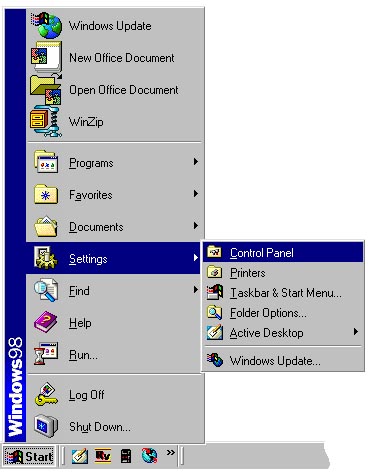
Go to your Start menu and select Settings then Control
Panel.
-
From the Windows Control Panel, select the Add New Hardware option.

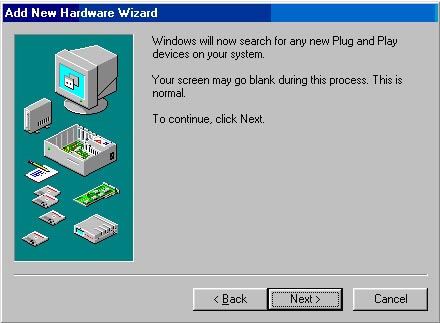
- From the Add New Hardware Wizard, Click Next to continue.

- Click Next to allow the Add New Hardware Wizard to search for all new Plug and Play devices on your PC.
-
Windows is now searching for all Plug and Play devices on your PC. This process should take several seconds, so please allow
Windows to complete this process.

- Once Windows has detected all the available Plug and Play devices, you will need to tell Windows you are going to select the hardware from a list by selecting that option from the window shown below. Once you have made that selection, click Next to continue.

- From the Add New Hardware Wizard dialog box that asks you to select the type of hardware you want to install, select Human
Interface Devices and click Next to continue.

- Once Windows assembles the driver information database, the Add New Hardware Wizard will ask you to select the
manufacturer and model of the hardware you are adding. Make sure you have (Standard Device) selected for Manufacturers: and USB Human Interface Devices selected for Models: as shown and click Next to continue.

- You should next get the dialog box shown below. Click Next to install the software necessary to support the new device. If
Windows asks you for the Windows disk, insert the Windows disk and allow Windows to install any components it needs at this time.

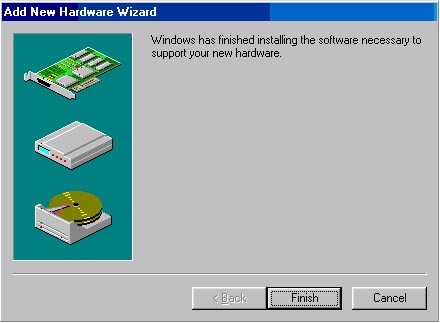
- The Add new Hardware Wizard should have finished installing the software necessary to support the new hardware device.
Click Finish to complete the process.
- Try running RealFlight again and see if the USB Interlink Controller is now functioning correctly. If you are still getting an error message related to the I-Controller not being connected or not appearing in the Control Panel, then please try contacting RealFlight Software Support for assistance.